


#1 Access Points
Ludwig is the sentence search engine that helps you write better English and understand if what you’re writing makes sense in real English.
When you type a word or a sentence in English, Ludwig returns contextualized examples taken from reliable sources like the New York Times, The Guardian, Science, well-written English papers, etc.
You can use the English writing example sentences that Ludwig provides you to:
- Do a sanity check on a sentence to see if it’s grammatically correct and properly used in the way and context you’re using it.
- Find similar sentences to discover if there are other ways to express your ideas.
- Translate with a grain of salt: by searching in your language, a number of contextualized examples of translation will help you figure out what’s the best way to translate something in English.
- Get information, inspiration and statistics about sentences using the advanced search options.
- Look up definitions and synonyms in the dictionary that Ludwig provides.
Ludwig is simply the ideal partner to help put your words in order with your thoughts. And build your confidence and career one perfect sentence at a time.
Ludwig offers you a number of access points to use its services and help you write in English with confidence.
In this article you can find more information on:
- Ludwig Desktop
- Ludwig Web
- Ludwig Chrome Extension
- Ludwig Mobile
Ludwig Desktop
If you’d like to use Ludwig while you are writing and together with other native apps (e.g. Word, GoogleDoc, Pages, Scrivener, etc.), then Ludwig Desktop is the perfect solution for you.
We recommend you use Ludwig Desktop because being seamlessly integrated with all native apps in your computer, it prevents you from switching applications and going to the web-browser (with the risk of losing focus or that what you were writing slips away).
To install the Ludwig Desktop (for Windows and Mac) all you have to do is follow this link: https://ludwig.guru/download/.
For more information, to take the most out of Ludwig Desktop, check out this blog post.
Once Ludwig Desktop is installed make sure it’s running in the background by checking the icon of Ludwig amongst your apps.
Whenever you have a doubt while writing, just highlight that piece of sentence and hit Ludwig’s shortcut (on Mac it’s ⌘+⇧+L, but if you are on a Windows it’ll be Ctrl+⇧+L).
A convenient and floating window will appear out of the blue with a number of results.
Ludwig Desktop: Appearance
You are free to customize how Ludwig Desktop looks like on your computer (if you’re wondering, we don’t have a dark mode so far) and its behavior.
By default Ludwig Desktop has a left menu that shows a number of icons that we’ll look more in detail in a few lines and disappears every time it is not in use.
By clicking on the side menu button over the search bar above the magnifier, you can expand or hide the side menu.

As I was saying, by default Ludwig Desktop disappears as soon as you stop interacting with it, and shows back up as soon as you highlight some text and hit the shortcut.
Nevertheless, we thought that you could appreciate the possibility to pin Ludwig Desktop so to keep it on the side of your document. You’re most likely to prefer this option if you’re editing a document. Cli clicking the same button you can also unpin the Ludwig Desktop.
Instead, by clicking on the top right arrow, you’ll collapse the entire app as shown below.

Navigating Ludwig Desktop.
It’s time to look more in detail at the side navigation menu. The side menu gives you access to a number of features that will help have at hand all the features you may need:

-
Ludwig’s icon brings you to the home, while the lens to the search page. That heart allows you to see your favorite sentences.
-
If you happen to find an interesting expression that you may want to reuse or revise later on, then click on the heart in the corresponding result snippet.
-
Favorite sentences can be revised later for learning purposes as I did with the expression “it’s running in the background”.
-
The time machine symbol gives access to the history of searches, that you can manage or delete at will.
-
While the small drawer gives access to Library, a specific feature that helps you customize the sources you search on Ludwig.
With Library you can:- Add your favorite English sources
- Organize them in Collections
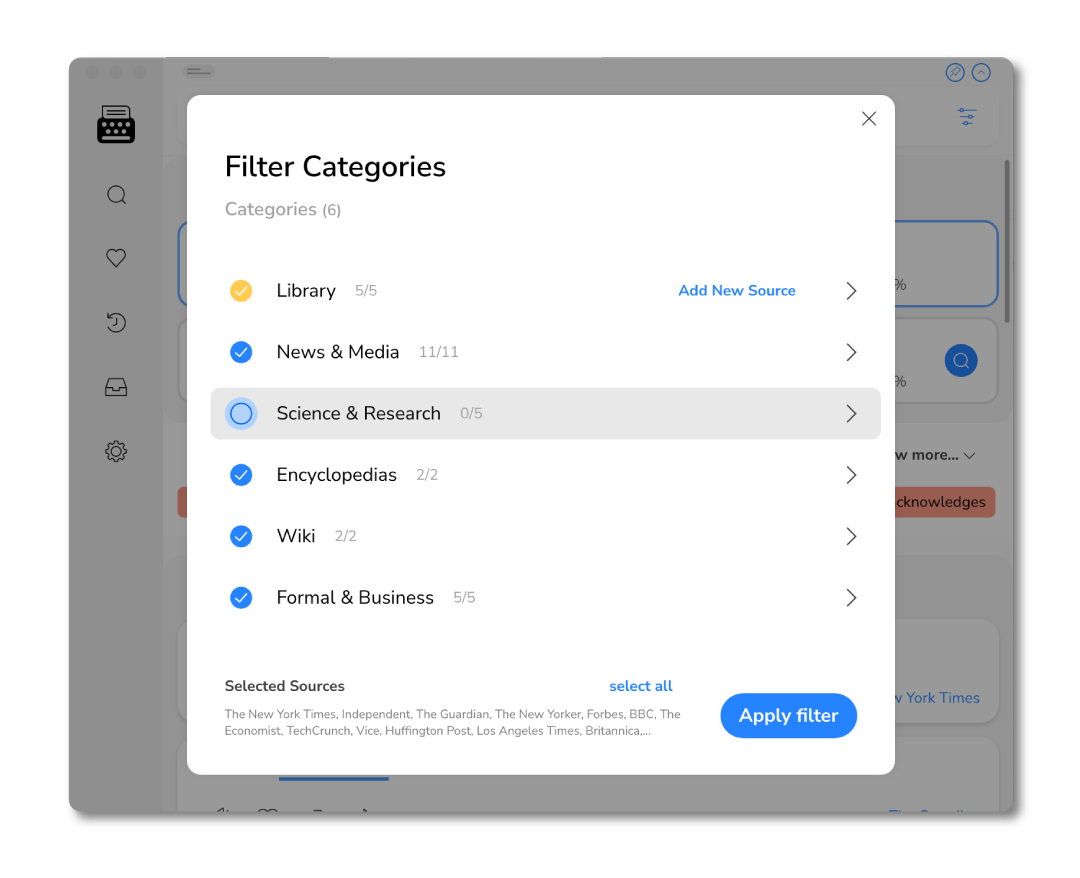
- Enable your Library in search filters to customize the results
You can access the search filter directly from the search bar.
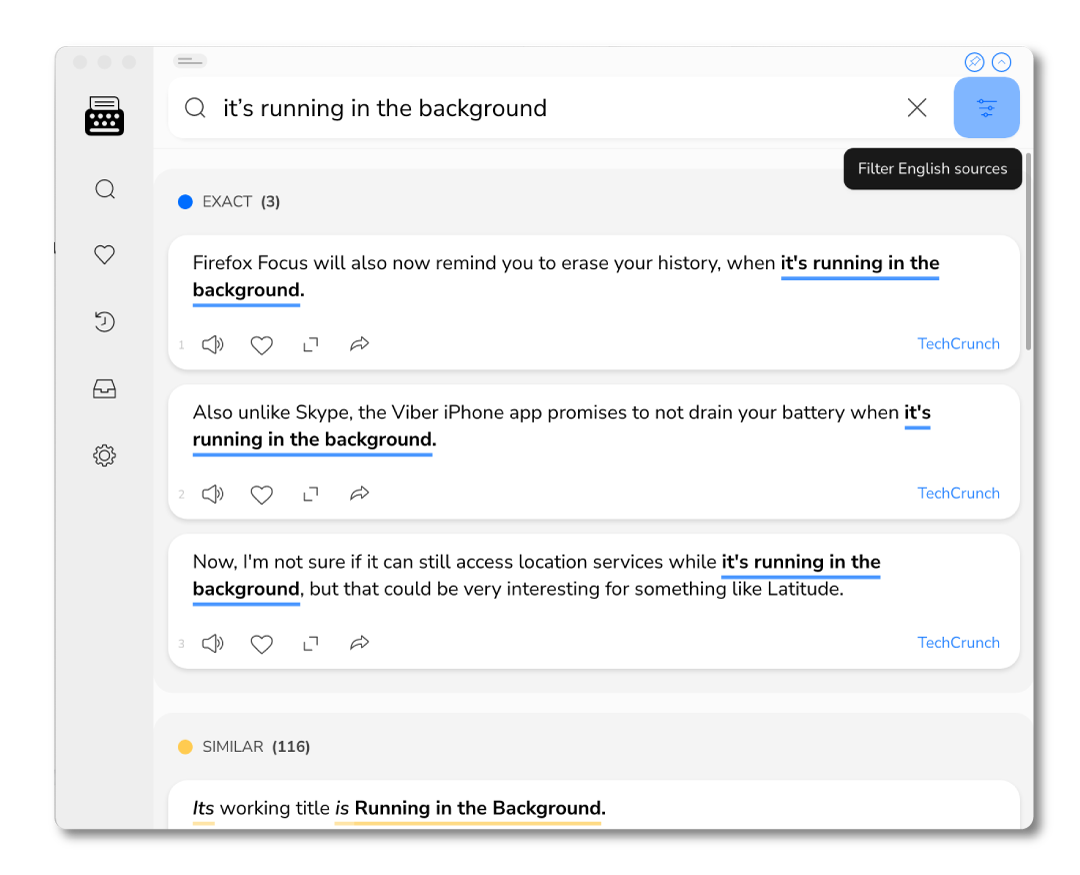
Use the Filter to comb through the sources that you find more useful for your writing and always find the perfect sentence for your needs. You can also select and unselect Library from the Filter and access Library as well (by clicking the button that says “Add New Source”)
The last piece of the menu is the account page.

From the account panel you can:
- Manage your account and subscription
- Send us a feedback, or
- Customize your shortcut in case it conflicts with other apps you use. All you have to do is: click on the Shortcut box and hit the new desired shortcut.
LUDWIG WEB
For those of you who prefer not to download any application, Ludwig Web sports the same exact features of Ludwig Desktop. It’s the web-based linguistic search engine most of you are probably already acquainted with. Everything looks the same as described above, but the fact that the navigation menu can be reached by clicking on your initials.
LUDWIG CHROME
Use the Ludwig extension to search Ludwig while writing on Chrome. Ludwig is there to assist you on Gmail, Google Doc, Medium, Twitter or anywhere you write. All you have to do is:
- Highlight a piece of text
- Click on Ludwig’s popup
- Get the examples you need to write

You can access the navigation menu by clicking on your initials in the top right corner, above the search bar.
You can find Ludwig for Chrome here:
LUDWIG MOBILE
As for mobile:
-
Android users can download a native Android app here:
-
iOS users can build a Progressive Web App themselves. Take a look at this guide to learn how. It’s really simple and I promise you’ll learn something.